Bridge & Swap
StarKey exposes Bridge and Swap behind the same screen, toggled from the app bar:
- Bridge — Send one token on one chain and receive a different token on another chain (e.g. SUPRA on Supra → ETH on Ethereum).
- Swap — Send one token and receive another on the same chain (e.g. SUPRA → ETH, both on Supra).
Both flows route through a provider (default SupraNova), quote a real-time rate, and surface every fee on a review screen before you sign.
Before you begin
- You need a balance of the source token, plus enough native token on the source chain to cover gas.
- Quotes are live — rates can drift while you sit on the review screen. A countdown indicator shows when the current quote will expire.
- Two cost lines apply to both flows:
- Network fee — Charged by the chain(s) involved.
- Service fee — Charged by the routing provider; itemized on review.
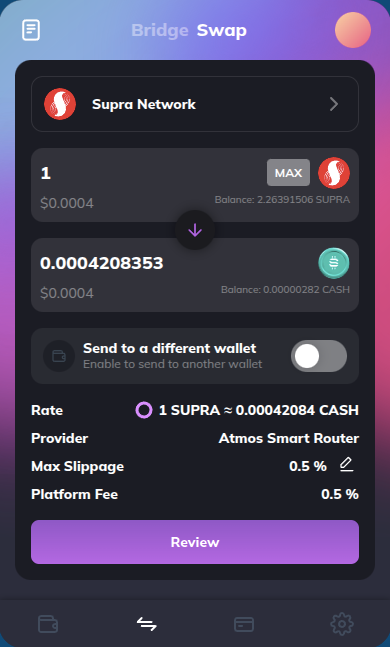
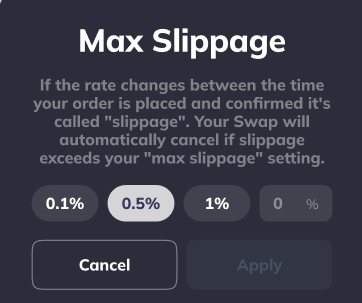
- Swap additionally exposes Max Slippage (default
0.5%). Bridge routes do not show slippage because the provider locks in the rate at submission.
Pick the mode
Tap the Bridge or Swap label in the app bar to switch modes. The white label is active; the dimmed one is inactive.
Bridge
Bridge flow
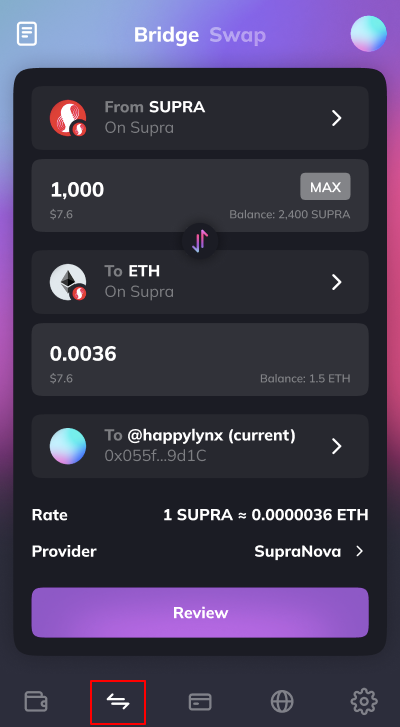
Open Bridge
Open StarKey and tap Bridge in the bottom navigation, then make sure Bridge is selected in the app bar.
Pick the source token and amount
In the From card, tap the token row to pick the asset and source network. StarKey shows your available balance below the amount field. Type the amount, or tap MAX to push the whole balance into the field.
MAX leaves no native token for future gas on the source chain. Enter the amount manually if you plan to keep using that chain.
Pick the destination token
In the To card, tap the token row to pick the asset you want to receive and the network it should land on. The destination amount fills in automatically from the provider quote — you do not type into it directly.
Tap the circular swap button between the cards to flip the route.
Confirm the recipient
The bottom row defaults to your current account on the destination chain (e.g. @happylynx (current) with 0x055f...9d1C). Tap to choose a different saved account or paste an external address.
Funds sent to a wrong address or wrong chain are typically unrecoverable. Double-check the destination, especially for exchange deposits.
Tap Review
When everything is valid, the Review button activates.
Review the quote
Each mode opens its own review screen with the same layout — only the fields that apply to the active mode show up.
Bridge Review
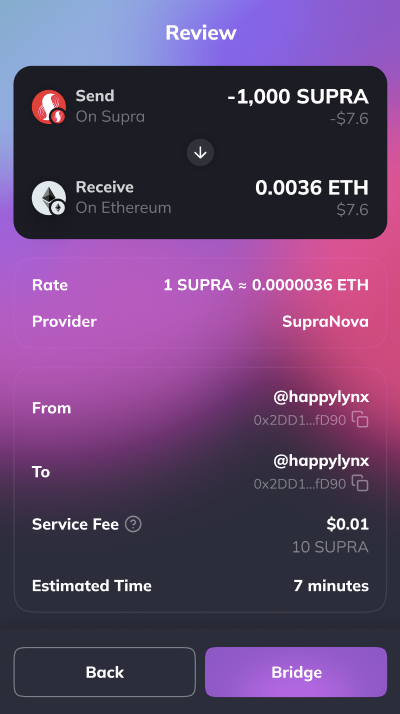
The top card mirrors the route:
- Send — Token, network, token amount, fiat value (e.g.
-1,000 SUPRA / -$7.6). - Receive — Token, network, expected amount, fiat value (e.g.
0.0036 ETH / $7.6).
The grouped detail cards below show:
- Rate — Token-to-token rate from the provider (e.g.
1 SUPRA ≈ 0.0000036 ETH). - Provider — Routing provider (e.g. SupraNova).
- From / To — Source and destination addresses with copy icons.
- Service Fee — Provider fee in native + fiat (e.g.
10 SUPRA / $0.01). - Estimated Time — How long the provider expects the route to take (e.g.
7 minutes).
Tap Bridge to sign the source-chain transaction. Back returns to the form with values preserved.
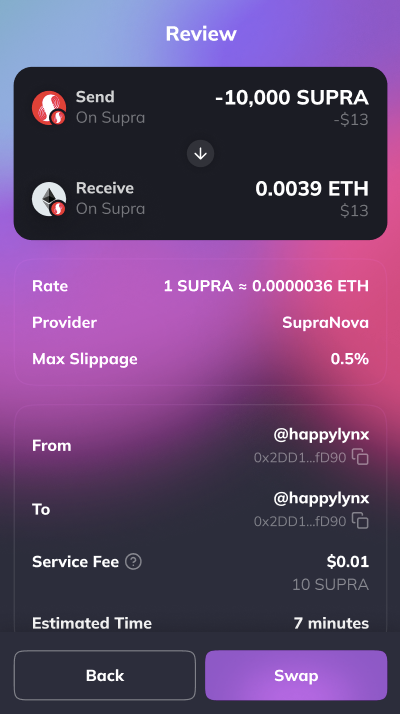
Quotes are time-bounded. If the on-screen countdown expires, tap Back then Review again — StarKey re-fetches a fresh quote and re-validates Max Slippage before you sign.
Track in History
Tap the history icon in the Bridge / Swap app bar to open the history view. The list is scoped to the active mode — Bridge mode shows past bridges, Swap mode shows past swaps.
Bridge History
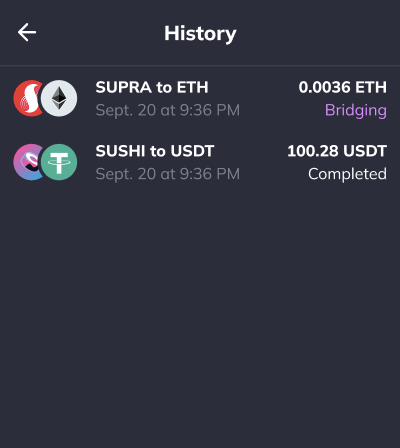
Each row shows:
- Token pair — Source-to-destination across chains, e.g.
SUPRA to ETH,SUSHI to USDT. - Timestamp — When the bridge was started (e.g.
Sept. 20 at 9:36 PM). - Received amount — Destination amount once the route settles (e.g.
0.0036 ETH,100.28 USDT). - Status —
Bridging(in flight, purple) orCompleted(settled).
If you have never bridged, the list shows an empty state with the message No history yet.
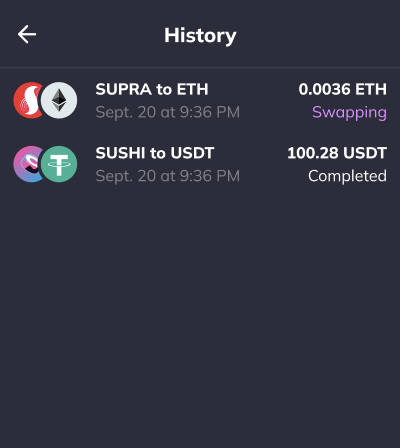
Tap any row to open the full activity view for that route.
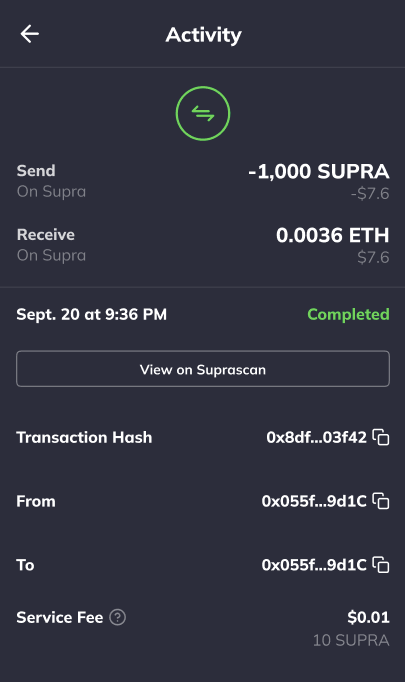
Activity
The activity view is the canonical record of a single route — what was sent, what was received, every transaction hash, and the settlement status. Bridge activity carries two hashes (source + destination); Swap activity carries one.
Bridge Activity
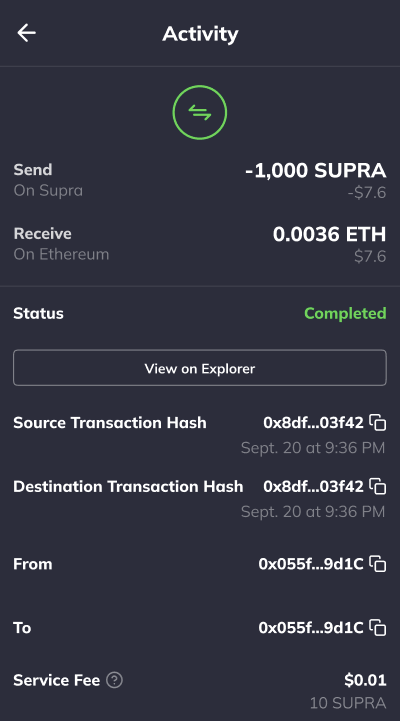
A bridge spans two chains, so the activity surfaces:
- Asset header — Bridge icon (progress ring while pending) plus Send / Receive rows with token amounts and fiat values.
- Status —
Bridgingwhile in flight,Completed(green) once settled,Failedif rejected. - View on Explorer — Opens the canonical explorer for the active row’s chain.
- Source Transaction Hash — Hash on the source chain (e.g.
0x8df...03f42) with copy icon and the mined timestamp. - Destination Transaction Hash — Hash on the destination chain with copy icon and timestamp. Populates only after the destination leg settles.
- From / To — Source-chain and destination-chain addresses.
- Service Fee — Final provider fee in native + fiat.
Until the destination leg settles, the destination hash row stays empty and the status reads Bridging. Pull back into
History to refresh — the timestamp and hash populate automatically once the provider confirms settlement.
Troubleshooting
- Review button stays disabled — Source amount is zero, exceeds available balance, the quote has expired, or no route is available for the chosen pair. Pick a different pair, refresh, or top up.
- “Insufficient balance for gas” — Enough source token, not enough native token on the source chain for the network fee. Top up native balance and retry.
- Swap reverts with a slippage error — Executed price moved past your Max Slippage limit. Bump slippage a notch (e.g.
0.5%→1%) on volatile pairs, or wait for liquidity to stabilize before retrying. - Quote keeps changing on the review screen — Provider rates move with on-chain liquidity. Tap Back then Review again for a fresh quote, or accept the current one quickly before the countdown expires.
- Bridge stuck on Bridging for much longer than the estimated time — Tap View on Explorer on the source hash. If the source confirmed but the destination has not surfaced, the provider is still relaying — give it more time before contacting support. Never re-broadcast manually.
- Destination hash missing on a completed-looking Bridge row — Refresh History. If the destination hash never appears, share the source hash and your destination address with support.
- Swap activity is missing a destination hash — Expected. Same-chain swaps only have one on-chain transaction; the source hash is the swap hash.