Create an Account
This guide walks you through creating a new StarKey wallet from scratch. You will set an account name and password, then secure your wallet by choosing one of two recovery options: Split Key Recovery or Secret Recovery Phrase.
Your account name and password are stored locally on your device. They are never shared with StarKey or any third party.
Before you begin
- Install the StarKey browser extension or the StarKey mobile app.
- Have a secure place ready to store your backup (a password manager, an offline note, or a trusted guardian).
- Allocate 5–10 minutes to complete the flow without interruption.
Onboarding flow
Open StarKey and start a new wallet
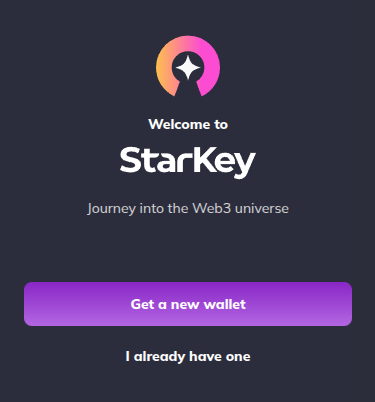
Launch the StarKey extension (or app) and choose Create new wallet from the welcome screen. If this is your first time, StarKey loads the onboarding screen below.
Set your account name and password
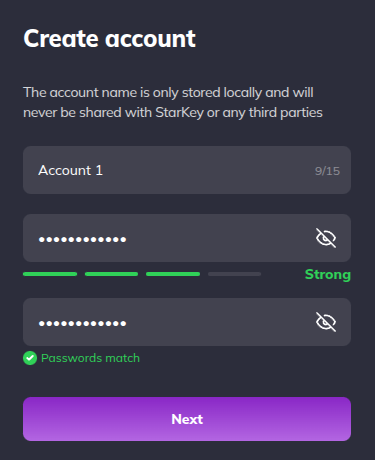
Enter an account name and a strong password. The account name is a local label that helps you identify the wallet inside StarKey — it is never broadcast on-chain or shared with StarKey servers.
Your password must satisfy all of the following:
- At least 8 characters
- Contains an uppercase letter
- Contains a number
- Contains a special character
StarKey shows a live password strength meter (Weak → Fair → Strong → Very Strong) as you type. Re-enter the password in the confirmation field, accept the terms of service, then continue.
StarKey cannot reset or recover this password for you. If you lose it, you will need your recovery backup to restore the wallet.
Choose how to secure your wallet
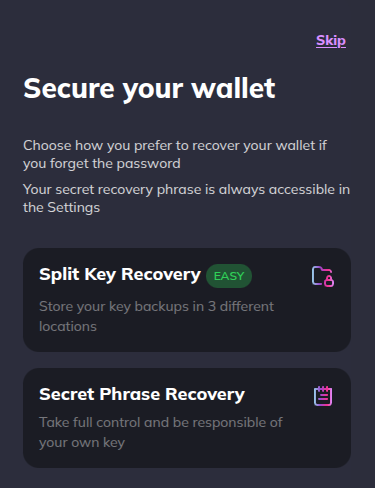
StarKey offers two ways to back up the wallet. Pick the one that best matches how you prefer to manage recovery:
- Split Key Recovery (Recommended) — Your key is split into three backups stored in three different locations (Google Drive, this device, and a trusted guardian). Any two of the three backups can restore the wallet.
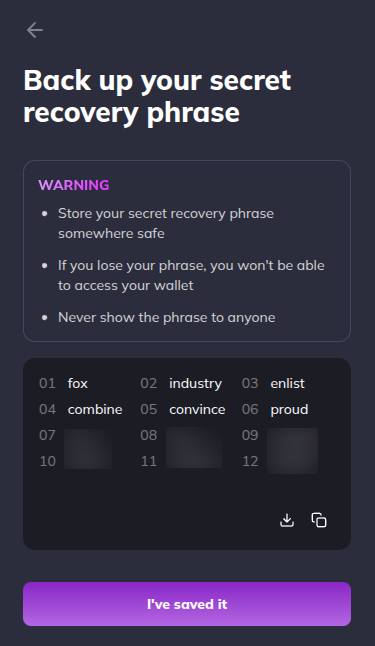
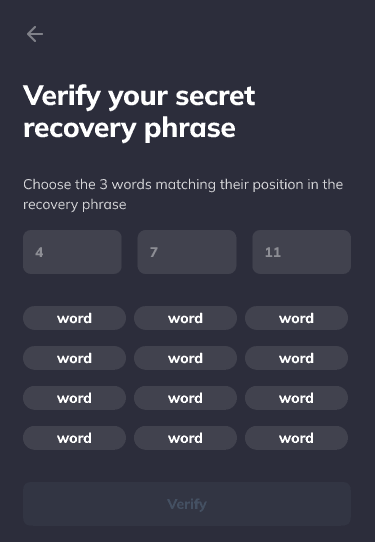
- Secret Recovery Phrase — A single 12-word phrase that you store yourself. You are fully responsible for keeping it safe.
You can always access your secret recovery phrase later from Settings regardless of which option you pick here.
Complete the recovery backup
Follow the tab that matches the method you chose in the previous step.
Split Key Recovery
Split Key Recovery divides your wallet key into three encrypted backup files. Each file is stored in a different location. You only need any two of the three files to recover the wallet, so the loss of a single backup does not lock you out.
You will be asked to:
- Set a recovery password — Used to encrypt the three backup files. Keep it separate from your wallet login password.
- Save backup 1 to Google Drive — Sign in with the Google account where the file should live.
- Save backup 2 to this device — Download the file locally and move it to safe storage.
- Send backup 3 to a guardian — Share with someone you trust; the guardian cannot access your funds, only hold the file.
Sign in to Google Drive
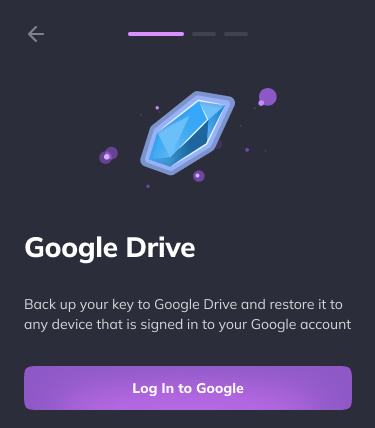
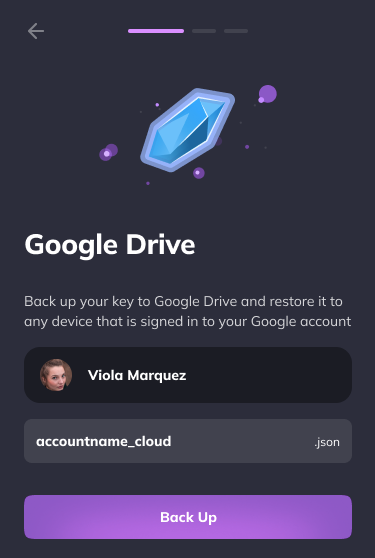
StarKey asks you to authenticate with Google so it can place the first encrypted backup file in your Drive. Once you allow access, StarKey uploads the file silently and shows a Saved in Google Drive confirmation.
Save the backup to Google Drive
Confirm the account, give the backup a name, then continue. StarKey writes a small encrypted file to your Drive. You can revoke StarKey’s Drive access at any time from your Google account settings — but doing so before recovery will disable that backup.
Save the backup to this device
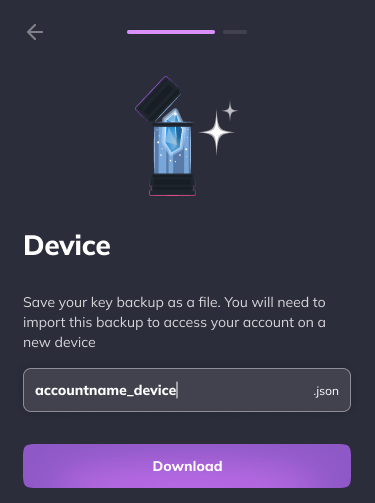
Name the device backup file and click Download. StarKey saves an encrypted .json file to your default downloads folder. Move it to a location you control — an external drive, an encrypted folder, or a password-manager attachment work well.
Do not leave the device backup in your Downloads folder. If another person uses this machine, they could copy the file.
Send the backup to a guardian
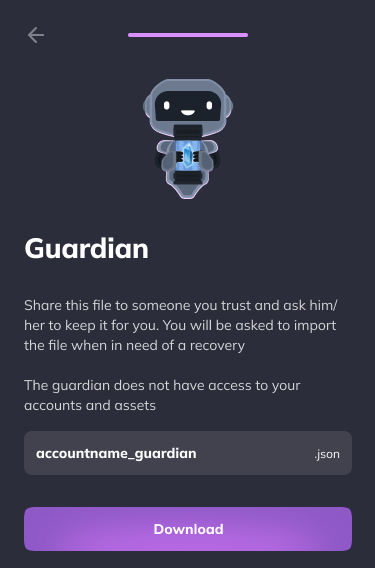
The guardian holds the third file on your behalf. Enter a label for the guardian (so you remember who holds which file), download the encrypted file, then share it with the guardian over a trusted channel.
The guardian cannot access your wallet or your funds with this file alone — they only hold an encrypted share. Recovery still requires at least two of the three files plus your recovery password.
Wallet ready
Once the chosen backup is complete, StarKey shows a Congratulations! screen confirming the wallet is created. You land on your new wallet’s main page with a fresh address ready to receive funds.
What to do next
- Establish a connection from your dApp.
- Send your first transaction.
- Store your backup files (or phrase) in a location separate from this device.
Troubleshooting
- Forgot the wallet password but have backups — Use the recovery flow with any two Split Key files plus your recovery password, or import using the 12-word phrase.
- Lost one Split Key backup — You are still safe. Recover with the remaining two backups, then immediately create a new wallet and migrate funds.
- Lost the recovery phrase and have no Split Key backup — The wallet cannot be recovered. This is by design — StarKey is non-custodial.