Buy
StarKey’s Buy tab lets you fund a wallet with fiat without leaving the app. Pick the fiat currency you want to spend, the token you want to receive, the destination account, and a payment method (card, bank transfer, etc.). The order is fulfilled by an on-ramp provider and lands in the chosen account once the provider confirms payment.
Before you begin
- Buy is provider-fulfilled — settlement times, supported countries, and KYC requirements come from the on-ramp provider, not StarKey.
- The list of supported fiat currencies, tokens, and payment methods depends on the provider’s coverage for your region.
- Pending orders stay listed in the Pending section on the Buy screen until the provider marks them complete or failed.
Open Buy
Tap the Buy icon in the bottom navigation.
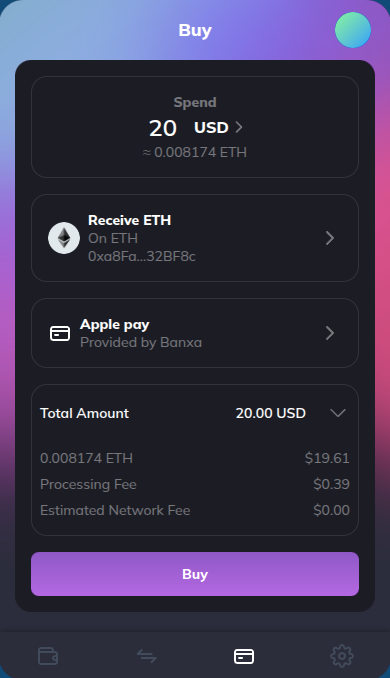
The screen is one column:
- Spend — Amount you want to pay, with a fiat currency dropdown. Below the amount, StarKey shows a live estimate in the receive token (e.g.
≈ 0 ETH,≈ 5.75 ETHonce filled). - From — Destination account that will receive the purchased crypto.
- Currency row — The fiat currency you are spending (e.g. USD, EUR).
- Token row — The crypto asset you are buying (e.g. ETH, SUPRA, USDC).
- Payment Method row — How you will pay (card, bank transfer, etc.).
- Pending — Collapsible section listing in-flight orders.
- Buy button — Disabled until every required field is filled.
Place an order
Enter the spend amount
Tap the amount field and type the fiat amount you want to spend (e.g. 100). The estimate line beneath the amount updates in real time (e.g. ≈ 5.75 ETH) using the current provider quote.
Pick the fiat currency
Tap the currency dropdown next to the amount to open the Buy_Fiat picker.
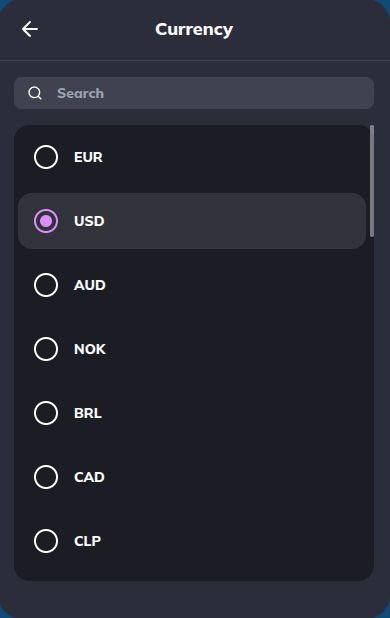
The picker lists supported currencies with a search field at the top. Type a code (e.g. USD, EUR, GBP) or scroll, then tap a row to pick it.
Pick the token
Tap the Token row to open the Buy_Token picker.
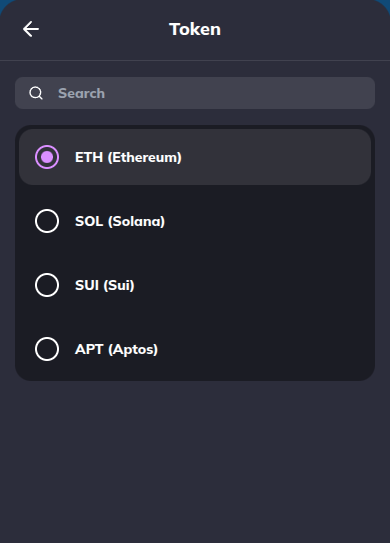
The picker exposes:
- Search — Filter by symbol or name.
- Network dropdown — Scope the list to a single chain or All Networks.
- Token list — Every token the provider supports for the active network.
Tap the token you want to receive. The estimate row on the main screen recalculates against the new token.
Confirm the destination account
The From row defaults to your active account on the receive token’s network. Tap the row to switch to a different account if you want the funds to land somewhere else.
Funds land on the account shown in From on the network of the chosen token. Pick the right account before you sign — once the provider has settled, the funds are at that address.
Pick a payment method
Tap the Payment Method row to open the Buy_Method picker.
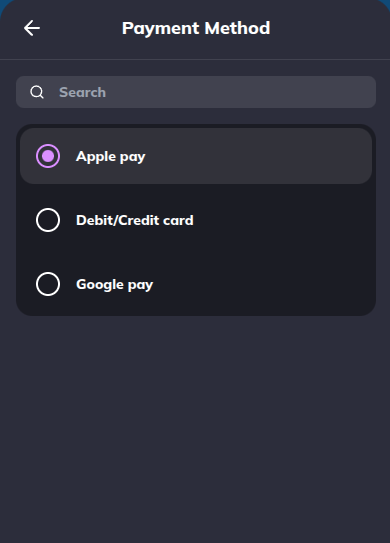
Pick from the available methods for your currency / region — typically:
- Card — Credit or debit card.
- Bank transfer — Bank / SEPA / ACH depending on region.
Provider fees and settlement times vary by method; the next step usually surfaces them on the provider’s checkout page.
Tap Buy
When every field is filled, the Buy button activates.
Tap Buy to hand off to the on-ramp provider’s checkout — you complete KYC (first time) and payment there, then return to StarKey.
Track pending orders
In-flight orders appear in the Pending section on the Buy screen. Tap the chevron to expand the list — each row shows the spend amount, the token being purchased, and the order’s current status.
Orders progress through:
- Pending — Provider has accepted the order, payment is processing.
- Completed — Provider has settled and funds are in the destination account.
- Failed — Provider rejected the order (KYC failure, payment declined, region not supported, etc.).
Settlement times depend on the provider and payment method. Card orders usually settle in minutes; bank transfers can take a business day or longer. Closing StarKey does not cancel a pending order — it keeps running on the provider’s side.
Troubleshooting
- Buy button greyed out — One of the required rows (Currency, Token, Payment Method) is empty, or the spend amount is below the provider’s minimum.
- Token I want is not in the picker — The on-ramp provider does not currently support that asset for your region or for the active network. Switch the network filter, or wait for provider coverage to expand.
- Currency I want is not in the picker — Same root cause: the provider does not yet support that fiat for buying crypto from your region.
- ”≈ 0 ETH” estimate stays at zero — Spend amount is below the provider’s minimum, or the provider quote endpoint did not respond. Try a larger amount or retry in a moment.
- Payment was charged but token did not arrive — Open the Pending section. If the row is still
Pending, the provider is still settling — wait. If it has flipped toFailed, the provider will refund to your payment method; contact provider support with the order ID if it does not return within their stated window. - Provider checkout opens but I cannot complete KYC — KYC requirements are set by the on-ramp provider, not StarKey. Follow the provider’s support flow for stuck verifications.