Import an Account
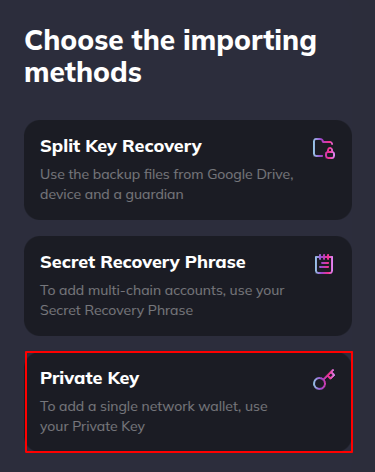
If you already have a StarKey wallet (or any compatible wallet) you can restore it on a new device or after a reinstall. StarKey supports three recovery methods:
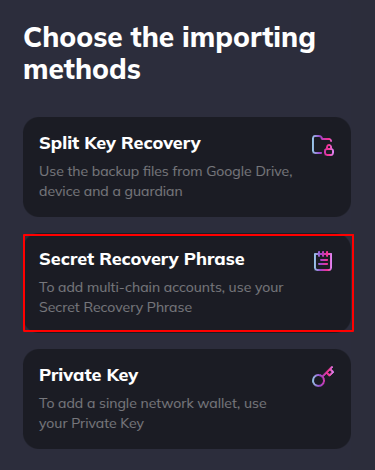
- Split Key Recovery — Restore using any two of the three encrypted backup files (Google Drive, device, guardian).
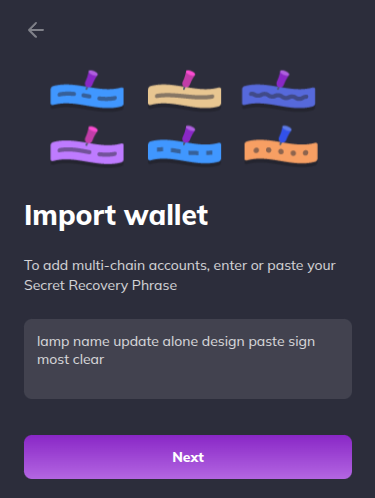
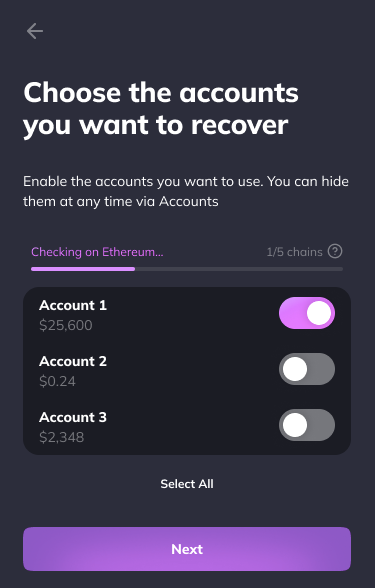
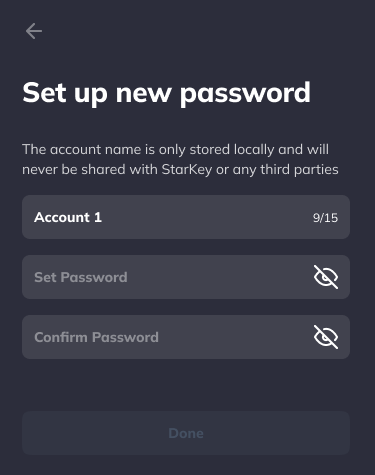
- Secret Recovery Phrase — Restore using your 12-word phrase. Recovers all multi-chain accounts under that phrase.
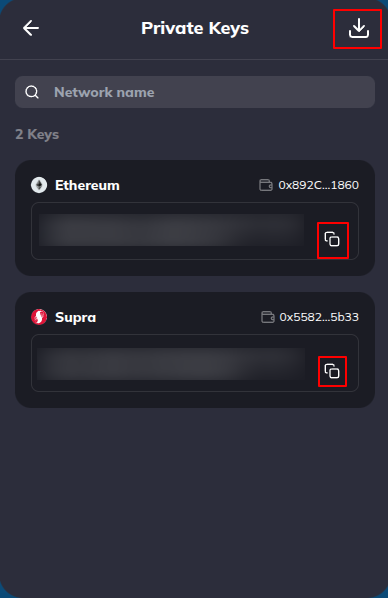
- Private Key — Restore a single-network account using a raw private key.
Importing replaces the wallet currently loaded in this StarKey instance. The current wallet, accounts, and assets are removed from this device. Back up the current wallet before continuing if you still need it.
Before you begin
- Have your backup files, recovery phrase, or private key ready.
- Verify you are on the official StarKey extension or app — never enter a phrase or private key into a copycat.
- Disconnect any screen-sharing or remote-desktop session before proceeding.
Choose a recovery method
On the StarKey welcome screen, choose I already have a wallet to open the Recovery methods screen. Pick the method that matches what you have:
- Split Key Recovery — you saved three backup files during account creation
- Secret Phrase Recovery — you wrote down the 12 words
- Private Key — you only have a raw single-chain private key
Then follow the matching tab below.
Split Key Recovery
Split Key Recovery rebuilds the wallet from any two of the three encrypted backup files you created during onboarding. You also need the recovery password you set at backup time — it decrypts the files.
Enter your decryption password
StarKey opens the Decrypt your files screen. Enter the recovery password you set when you originally created the backups. This password decrypts the backup files locally — StarKey never sees it.
This is the recovery password, not your wallet login password. They may be different. If you reused the same string, you only need to remember one.
Upload two of the three backup files
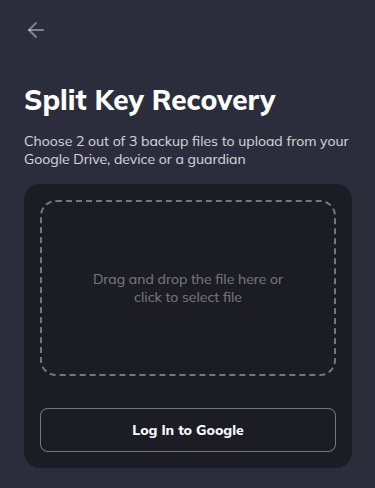
StarKey shows a drag-and-drop area. Drop in any 2 of the 3 backup files: the Google Drive copy, the device copy, or the guardian copy. You can also click the area to pick a file from disk, or use Browse Google Drive to fetch the cloud backup directly.
The files must satisfy:
- Correct file format (a StarKey
.jsonbackup) - Both files from the same account
- Both files from different locations (e.g. one Drive + one Device, not two Drive copies)
Confirm and recover
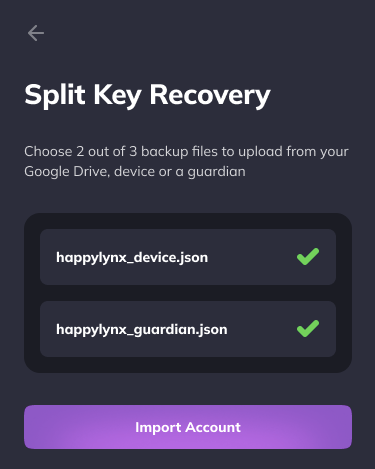
Once two valid files are uploaded, StarKey lists them and enables Confirm. Click it to decrypt and restore. StarKey rebuilds the wallet, scans the supported chains for existing accounts, and lands you back on the wallet home screen.
If StarKey shows an error, check: decryption password is correct, both files are valid .json backups, the files are
from the same account, and the files come from two different locations.
Wallet ready
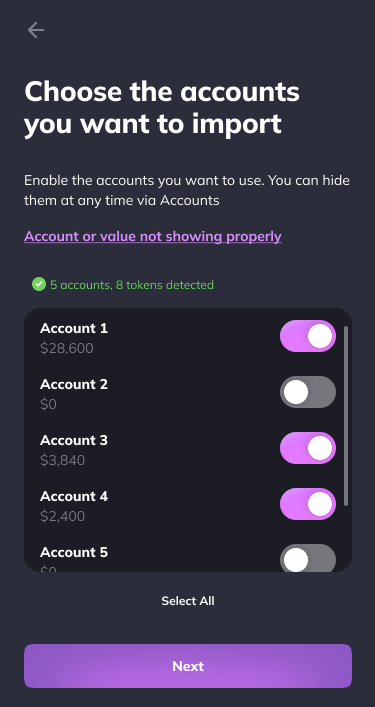
After any of the three flows, StarKey shows the You are all good confirmation and drops you on the wallet home screen with funds restored.
What to do next
- Connect StarKey to your dApp.
- Send a transaction to confirm the wallet works.
- If you imported using Split Key files or Private Key, consider exporting your Secret Recovery Phrase from Settings → Security so you have a full multi-chain backup.
Troubleshooting
- Split Key error: “files are from different accounts” — You uploaded two backup files belonging to two different wallets. Re-upload files from the same account.
- Split Key error: “files are the same” — You uploaded the same file twice (or two copies of the same backup). Upload two distinct backups (e.g. one Drive + one Device).
- Phrase rejected — Check word order and spelling. Each word must be in the BIP-39 word list. Trailing or leading whitespace is trimmed automatically; mistyped words are not.
- Private key rejected — Verify the key is hex-encoded and not prefixed with extra data. Mnemonic phrases do not work in the Private Key flow — use the Secret Recovery Phrase tab instead.
- No accounts shown after phrase import — The scan only finds accounts with on-chain activity. You can still create or unhide accounts from Accounts settings.