NFTs
StarKey treats every NFT in your wallet as part of your portfolio. The NFTs view is a two-column grid of covers; tap a cover to open the NFT Details page, where you can read the description and attributes, see trading history, and trigger Send, Receive, Sell, or Share actions. Items that the wallet did not auto-detect can be added via Import NFT; suspected spam can be hidden in bulk via Manage NFT.
NFT portfolio
Open the NFTs tab on the portfolio. StarKey shows two NFT covers per row across the active network — or all networks when the network filter is set to All Networks.
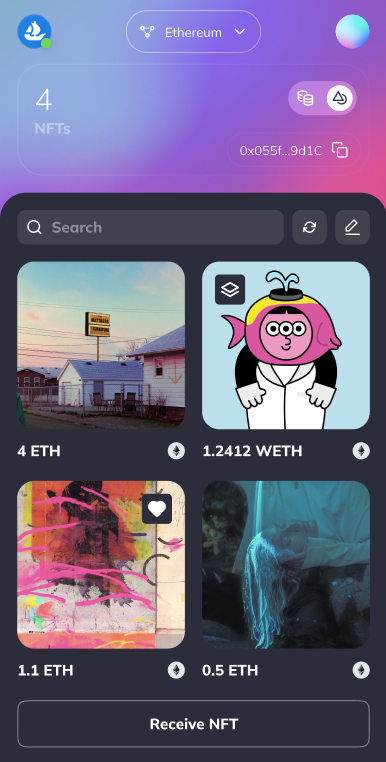
The toolbar at the top of the list exposes:
- Search — Filter the grid by NFT name or collection name.
- Refresh — Force a re-scan of on-chain holdings for the active network.
- Edit — Opens the Manage NFT view (see Manage NFTs).
Floor-priced rows in collections that exist as ERC1155 multi-editions are shown using the highest or lowest price across the wallet’s editions, depending on the price feed configuration for that collection.
NFT details
Tap any cover to open the full details page for that item.
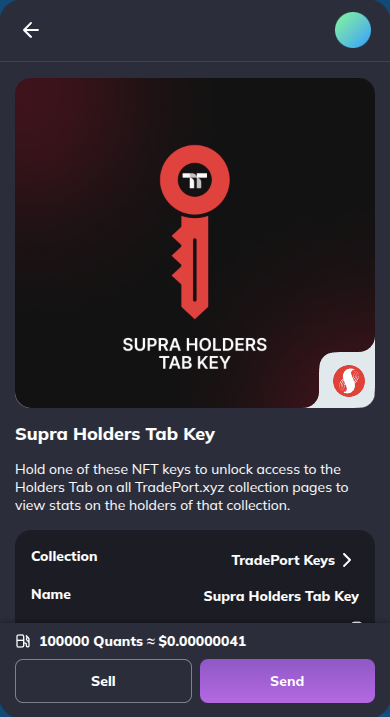
The page is organized into:
- NFT Image — Cover artwork at the top.
- Name + Edition — Item name (e.g.
Lavender) and edition string (e.g.Edition 17 of 35). - Attribute chips — Trait chips when the metadata exposes attributes.
- Description — Free-text description from the collection metadata.
- Details rows — Contract address, token standard, token ID, owner, and the data card with collection floor / last sale.
- Floating action bar —
Gas Priceindicator plus Send and Sell buttons.
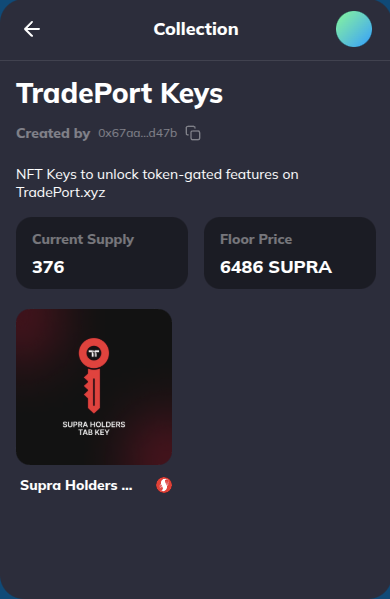
Collection page
Tap the collection name on the details page (or open a cover from the Collection strip) to open the collection page. It shows the collection name (e.g. Joey The Photographer), the creator (e.g. Created by thecowboykiller), a long description, and stats cards (floor, items, owners).
Trading history
Below the details, the Artwork Trading History section lists every recorded transfer for the item — sales, mints, and direct transfers — with a timeframe dropdown to scope the view.
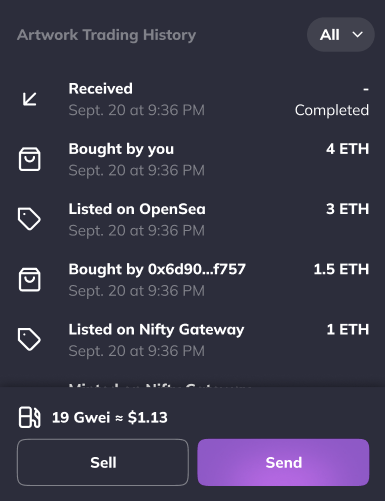
Each row shows the event type, counterparties, price (when applicable), and timestamp.
Send an NFT
Send any owned NFT to a wallet address, a saved contact, or a Supra domain name.
Tap Send on the details page
Open the NFT and tap Send in the floating action bar.
Pick the recipient
The send screen opens with the NFT cover at the top and a To field below.
- Paste an address, type a Supra domain (e.g.
place...holder.domain.supra), or scan a QR. - Pick from Recently interacted with (other addresses you have transacted with).
- Pick from In this wallet (your own accounts).
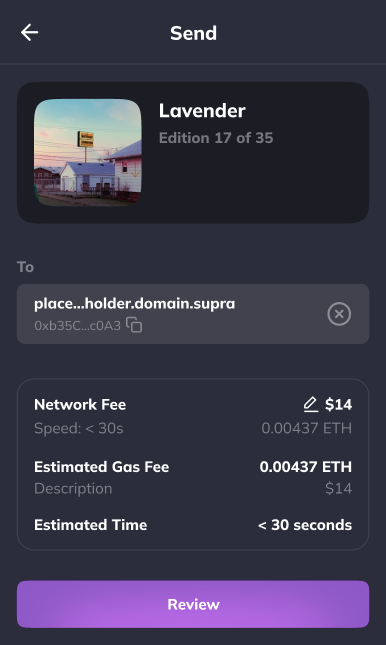
NFT transfers are irreversible. Always confirm the destination address and network before continuing.
Enter the amount (ERC1155 only)
For ERC1155 items where you own more than one edition, the NFT info card adds an Amount stepper between the cover and the To field. Use − / + or type the number of editions to send.
ERC721 items always send exactly one and skip this step.
Review and confirm
Tap Next. StarKey opens the review screen with the NFT background, Send label, item name and edition, recipient, Network, and a gas / fee breakdown.
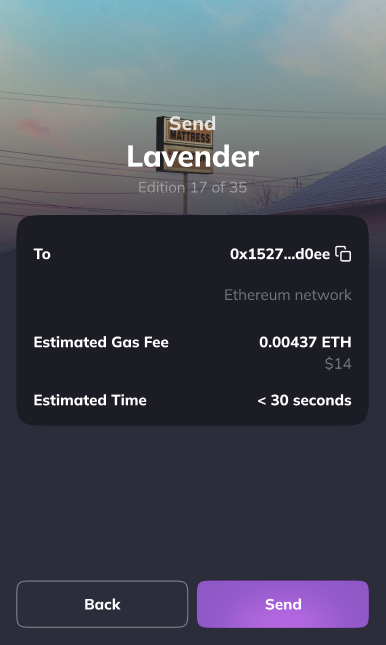
- Send — Item name and edition (e.g.
Lavender,Edition 17 of 35). - Network — Chain the transfer runs on (e.g.
Ethereum network). - Recipient — Destination address.
- Fee rows — Network fee, total deducted, plus any provider fee.
Tap Send to sign and broadcast. Back returns to the form with values preserved.
Confirmation
Once StarKey accepts the signed transaction, a confirmation popup acknowledges that the transfer has been broadcast.
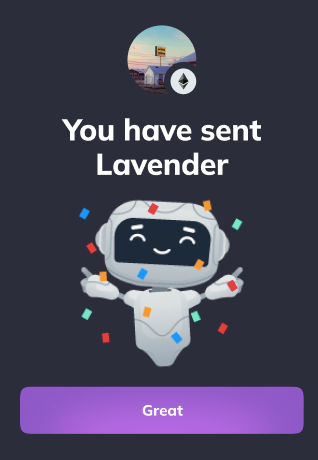
Tap Done to close. The transaction now appears under NFT activity.
Receive an NFT
Tap Receive on a single-network NFT view (or from the asset card) to open the QR + address screen.
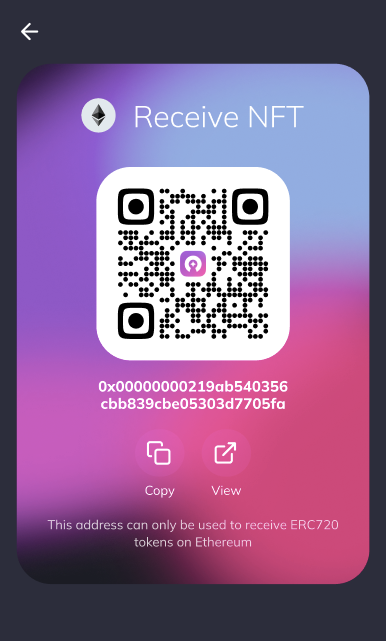
The screen shows:
- Receive NFT title with the active network icon.
- QR code — Encodes your address on the active network.
- Address — Full address below the QR (e.g.
0x00000000219ab540356cbb839cbe05303d7705fa). - Copy — Copies the address.
- View — Opens the address on the canonical block explorer for that network.
- Standard hint — A note such as “This address can only be used to receive ERC720 tokens on Ethereum” so the sender uses the right standard.
Receiving works only on the network shown at the top of the screen. Sending an NFT on a different chain to this address will not arrive — switch the network filter to the correct chain first.
Sell
Tap Sell on the NFT details page to open a curated list of marketplaces that support the active chain.
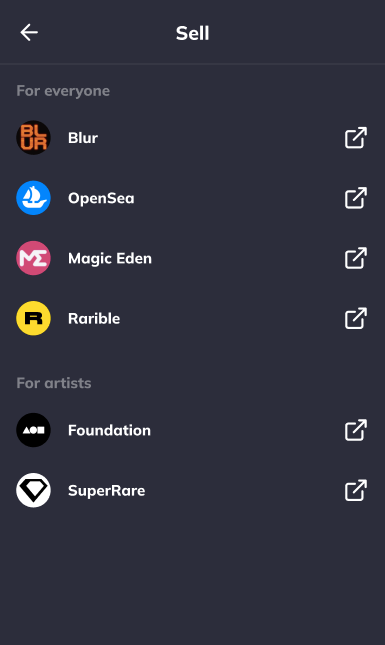
The list is grouped:
- For everyone — General-purpose marketplaces (e.g. OpenSea, Blur, Magic Eden, LooksRare).
- For artists — Curated / 1-of-1 marketplaces (e.g. SuperRare, Foundation).
Tap a row to open the marketplace in your browser pre-filled with the item.
Share
The Share option (from the bulk action bar in Manage NFT, or from the details page) opens a list of social channels — typically X, Farcaster, and a copy-link option — so you can post the item with one tap.
Import an NFT
Use Import NFT when StarKey did not auto-detect an item you own.
Open Import NFT
From Manage NFT, tap the Import action. You can find the values to enter in the Details section on the OpenSea page of your NFT.
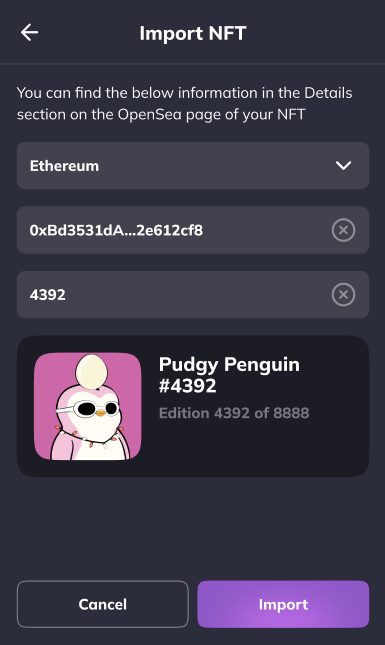
Fill the three fields
Enter:
- Contract address — The NFT contract address (
0x...). - Token ID — The numeric token ID of the specific item.
- Token standard —
ERC721orERC1155. StarKey auto-detects when the contract is recognized.
When the address and token ID resolve, StarKey previews the item below the fields — cover, name (e.g. Pudgy Penguin #4392), and edition string (e.g. Edition 4392 of 8888).
Tap Import
Tap Import to add the item to your portfolio. Cancel discards everything.
Import errors
StarKey validates the inputs before importing and surfaces inline feedback for the common failures:
- Address error — The contract address is malformed, not deployed on the active network, or not an NFT contract. The address field shows an inline error and the import button stays disabled.
- Ownership error — The contract and token ID are valid but the connected wallet does not own this token. Inline feedback explains the mismatch; switch accounts or networks and retry.
If everything resolves cleanly, the page shows an Import NFT_completed confirmation popup.
Manage NFTs
Tap the Edit icon in the NFTs toolbar to enter Manage NFT.
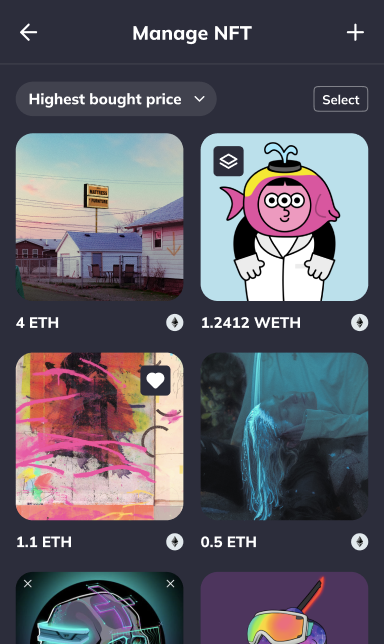
The manage view is the same grid plus:
- Network dropdown — Scope to a single chain or All Networks. When the portfolio is filtered to a single network, that network is preselected.
- Select / Cancel — Toggle selection mode.
- Floating sort buttons — Sort the grid by recent, name, or collection.
Select and act in bulk
Tap Select, then tap NFT covers to multi-select. The toolbar updates to N NFTs selected and reveals two bulk actions:
- Favorite — Adds all selected NFTs to Favorites. If every selected item is already favorited, the same icon flips to Unfavorite and removes them.
- Hide — Hides the selected items from the main portfolio. Use this to clear out airdropped spam.
Tapping an NFT cover directly (without first hitting Select) opens the details page. Use Select when you intend to act on multiple items.
Hidden NFTs
A Hidden NFTs button appears at the bottom of the manage list when at least one item is hidden. Tap to open the hidden grid.
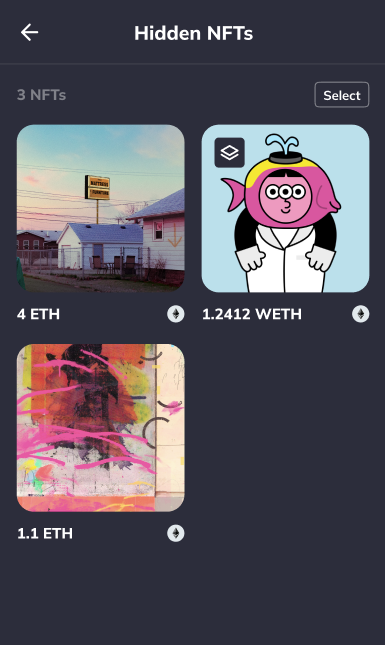
The header shows the hidden count (e.g. 3 NFTs). Select items here, then tap the floating Unhide action to return them to the main portfolio.
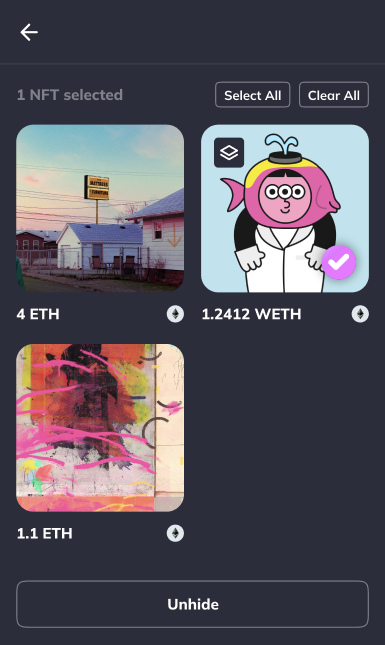
Hidden NFTs cannot be added to Favorites, shared, or sorted. To act on a hidden NFT, unhide it first.
Empty states:
- No displaying NFTs — Every NFT in the wallet is hidden. Open Hidden NFTs and unhide what you want back on the portfolio.
- No NFTs (hidden list empty) — Nothing has been hidden yet.
Enable Legacy NFTs
Some older standards (pre-ERC721 or non-standard contracts) are gated behind a one-time opt-in. When StarKey detects a candidate it cannot show by default, it surfaces an Enable Legacy NFTs popup.
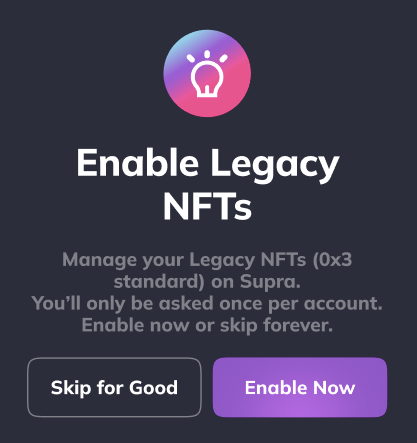
Tap Enable to allow the wallet to index and display these items, or Cancel to keep them filtered out. The setting can be flipped later from Settings → NFTs.
Legacy NFT contracts are higher-risk — they bypass the modern transfer-safety standards. Only enable this if you are confident the item is from a contract you trust.
NFT activity
Every NFT transfer the wallet signs or receives shows up under the Activity tab and on the details page of the receiving / sending account. Tap a row to open the transaction detail.
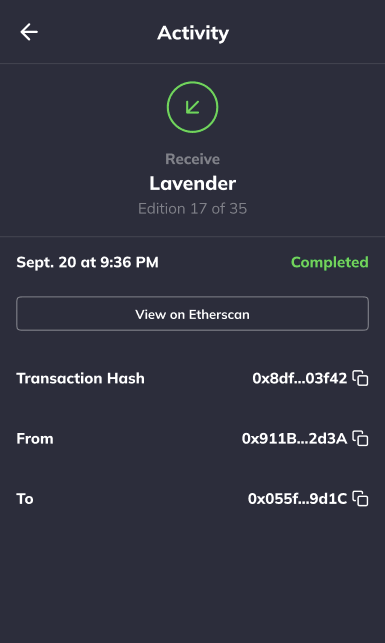
The detail page surfaces:
- Direction icon — Down-left arrow for Receive, up-right for Send.
- Balance row —
Receive/Sendlabel, item name (e.g.Lavender), and edition (e.g.Edition 17 of 35). - Status —
Pending/Completed/Failed. - View on Explorer — Opens the transaction on the canonical block explorer.
- Details rows — Counterparty, transaction hash, network, fee, timestamp.
Troubleshooting
- NFT I own is not in the portfolio — Tap the Refresh icon in the NFTs toolbar. If it still does not appear, use Import NFT with the contract address and token ID from the marketplace’s Details section.
- Import says “Ownership error” — The contract and token ID resolved, but the connected account does not own the item. Switch to the account that owns it, or verify the token ID on the marketplace.
- Import says “Address error” — Contract address is malformed or the contract does not exist on the active network. Switch network or paste a verified contract from a trusted source.
- NFT visible in StarKey is not on the marketplace — Marketplaces re-index on their own cadence. Trigger a refresh on the marketplace or wait a few minutes.
- Send button greyed out — Recipient address is invalid, ERC1155 amount exceeds the editions you own, or you do not have enough native token to cover gas.
- Sent an NFT but it shows on both sides for a moment — Until the transfer is mined and indexed, your portfolio may still show the old ownership. Refresh after a few blocks.
- Receive QR is for the wrong chain — The receive screen is scoped to the network shown at the top. Switch the network filter, then re-open Receive.
- Spam NFTs keep appearing — Bulk-select them in Manage NFT and tap Hide. They stay out of the portfolio but remain in Hidden NFTs.
- An older NFT does not show even after refresh — It may be a legacy contract. Look for the Enable Legacy NFTs prompt, or open Settings → NFTs and turn legacy support on.