Settings
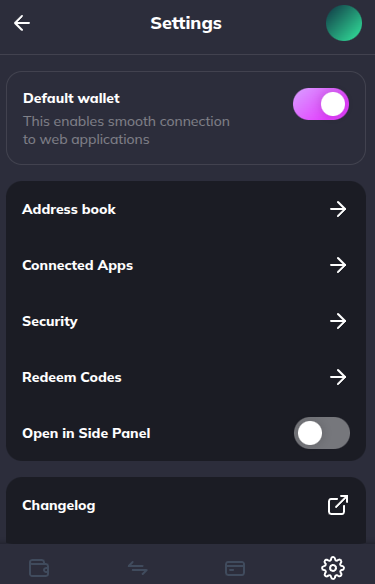
The Settings screen is the control center for your StarKey wallet. From here you can manage connected dApps, address book entries, security options (password, auto-lock, recovery phrase, split-key backups), display preferences, and account-level actions like logging out.
Open Settings
Tap the Settings icon in the bottom navigation bar (or the gear icon in the app bar on the extension). StarKey loads the Settings index, organized into:
- Profile — Your active account name, avatar, and quick edit access.
- Frequent — Address Book, Connected Apps, Security, Redeem Codes.
- Minor — Display, Notifications, About, Help, Terms, Privacy.
- Log out action at the bottom along with the build version.
Log out clears the unlocked session on this device. It does not delete the wallet — unlock again with your password to restore access.
Connected Apps
The Connected Apps screen lists every dApp that currently has permission to talk to your wallet. Use it to audit, revoke individual connections, or disconnect everything at once.
Open Connected Apps
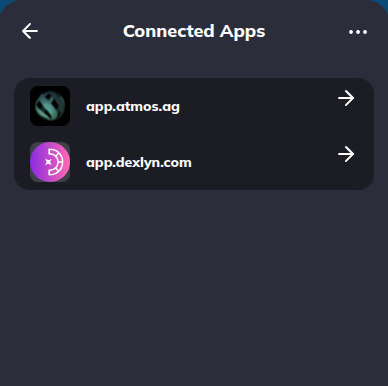
From Settings → Connected Apps, StarKey shows each dApp as a row with its icon, name, and the account it is connected to.
Inspect or disconnect a single dApp
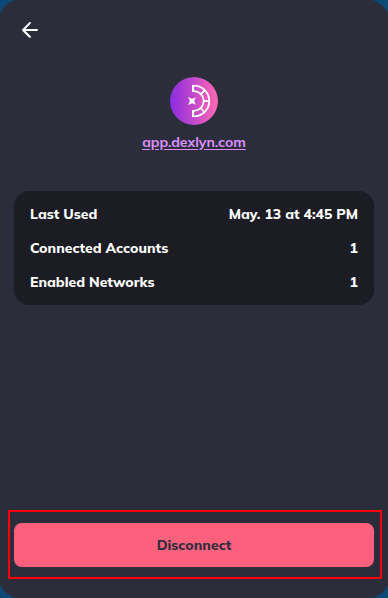
Tap a row to open its details — origin URL, account, permissions granted, and the date connected. Tap Disconnect at the bottom to revoke that single dApp’s access without touching the others.
Disconnect every dApp
Use the Disconnect all action in the top-right menu. StarKey shows a confirmation popup before applying — once confirmed, every dApp loses access and must request permission again on next connect.
Disconnect does not revoke on-chain approvals (token spend allowances, NFT operator approvals). Revoke those separately on a tool like Revoke.cash if you no longer trust the dApp.
Address Book
Address Book stores frequently-used recipient addresses with friendly labels so you do not have to paste a raw address every time you send.
View saved addresses
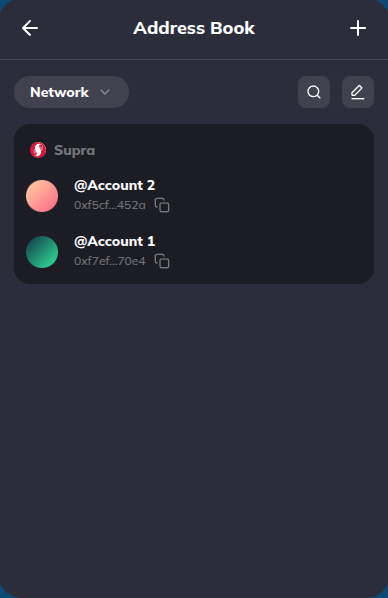
Settings → Address Book shows addresses grouped by network (Ethereum, Solana, Supra, etc.). Use the Network dropdown at the top to filter, or the Sort icon to re-order alphabetically or by date added.
Add a new address
Tap Add in the toolbar. Fill in:
- Label — Human-readable name (e.g. “Treasury cold wallet”).
- Network — Pick the chain the address lives on.
- Address — Paste the full address. StarKey validates the format inline.
Save to add it to the list.
Edit or delete an address
Tap the Edit (pencil) icon in the toolbar to enter edit mode. Each row reveals Edit and Delete actions. Editing reopens the same form with current values pre-filled; deleting prompts a confirmation popup before removing.
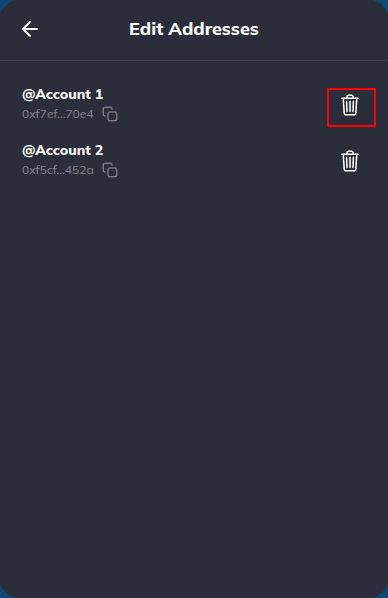
Address Book is local to this device. To sync entries across devices, export and re-import them, or recover your wallet on the other device using the Secret Recovery Phrase.
Security
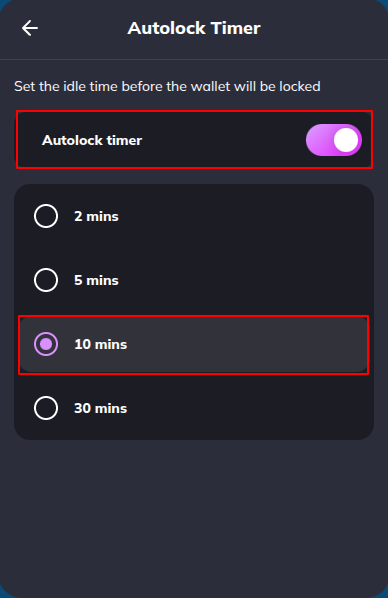
The Security screen groups all sensitive controls: password, auto-lock timer, recovery phrase access, and split-key backup management.
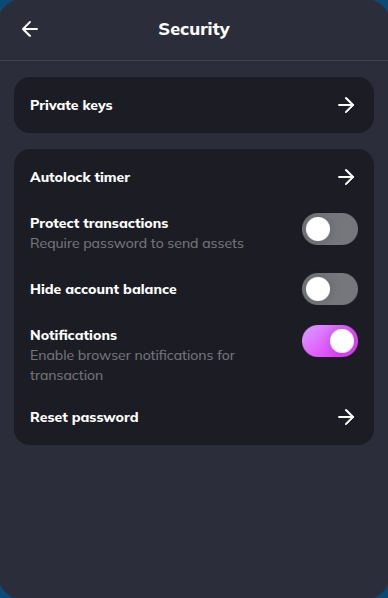
Change Password
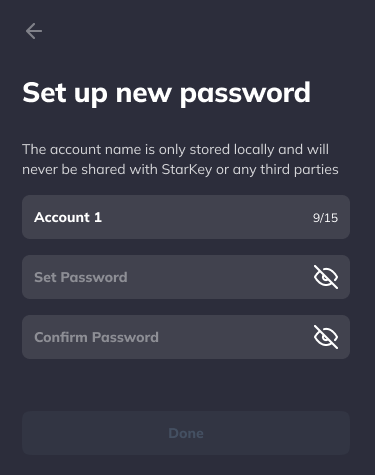
Change the local password used to unlock StarKey on this device. The password never leaves the device and never touches your on-chain assets directly — it only protects the local keystore.
Open the password screen
Settings → Security → Change Password opens a form with three fields.
Enter current and new password
- Current password — Required to authorize the change.
- New password — Must meet the standard strength rules (8+ characters, uppercase, number, special character). The strength meter updates as you type.
- Confirm new password — Re-type the new password exactly.
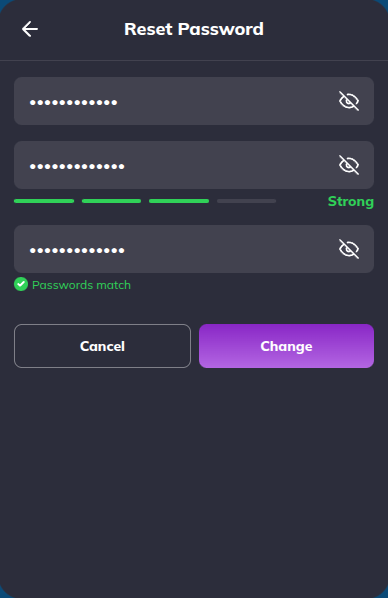
Tap Confirm. StarKey re-encrypts the local keystore with the new password and shows a confirmation toast.
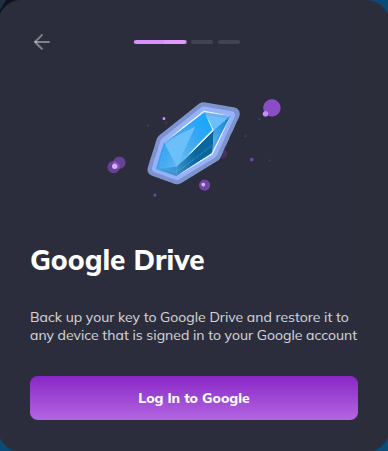
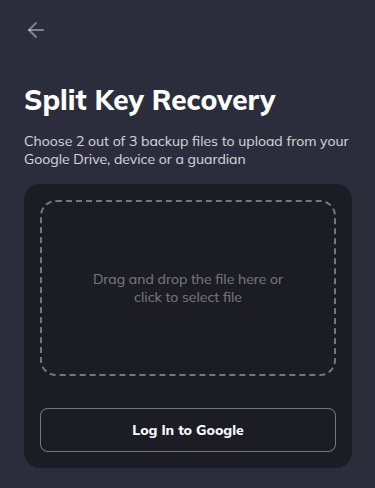
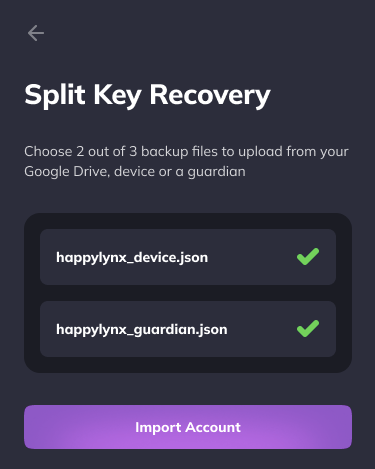
If you forget the new password, you will need to recover the wallet using your Secret Recovery Phrase or Split Key backup files. There is no email reset.
Other settings
- Display — Currency (USD, EUR, JPY, etc.) and Language.
- Notifications — Per-event toggles for transaction confirmations, price alerts, and dApp prompts.
- Redeem Codes — Enter promo / reward codes for staking or vesting credits.
- About — App version, build number, and links to Terms of Service and Privacy Policy.
- Help — Direct links to support documentation and contact channels.
Log out
The Log out button at the bottom of Settings clears the unlocked session on this device. The wallet itself is not deleted — unlock with your password on next launch to restore access.
Logging out does not wipe the local keystore. If you are handing the device to someone else permanently, uninstall the app instead — and make sure your Secret Recovery Phrase or Split Key files are stored safely first.
Troubleshooting
- “Wrong password” when viewing the recovery phrase — You typed the wallet password incorrectly. If you genuinely forgot it, recover the wallet from your Split Key files or 12-word phrase rather than guessing.
- Auto-lock did not trigger — Some platforms keep the app focused while a dApp tab is active. Lock manually with the lock icon if you are stepping away.
- Disconnect All shows greyed out — You have no active dApp connections. Disconnect All is only available when at least one dApp is connected.
- Split Key re-download fails — Verify the decryption password matches the one used at original backup time. If you have rotated it, use the most recent password.